

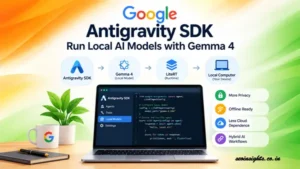
Google Antigravity SDK Gemma 4 26B -How to Run Local AI Models – Antigravity SDK LiteRT Tutorial
Highlights
- Google has added support for local AI models and offline agentic workflows to the Antigravity SDK.
- The initial LiteRT workflow is optimized for Gemma 4 26B A4B.
- Developers can run AI agents locally without an API key or continuous cloud connectivity.
- Local execution can help with privacy, offline development and reducing cloud API usage.
- The SDK also supports OpenAI-compatible local servers such as Ollama, LM Studio and vLLM.
- Hybrid workflows can combine cloud-based planning with local model execution.
What Is the Antigravity SDK?
Imagine you are building an AI coding assistant.
You want the assistant to inspect files, execute commands, modify code and test the result. But there is an important question:
Does every part of that workflow need to be sent to a cloud AI service?
Google’s latest Antigravity SDK update introduces another option: run supported AI agent workflows directly on your own machine.
The Antigravity SDK is Google’s Python SDK for building autonomous AI agents using the Antigravity agent runtime. The SDK provides capabilities such as tool execution, context management, safety policies and agent workflows. (Google Antigravity)
On September 23, 2026, Google announced support for local workflows across local models and execution options, initially highlighting Gemma 4 26B A4B with Google AI Edge’s LiteRT. (Google Developers Blog)
That changes the possibilities for developers who want AI agents that can work closer to their data and hardware.
What Is New in the Antigravity SDK?
The major change is the ability to use local models for agentic workflows.
Previously, developers commonly thought of an AI agent as something that communicates with a remote model through an API. The new local-model support allows the agent to use a model running on the developer’s own machine.
Google’s documentation currently describes two main approaches:
- LiteRTAgentConfig for models running through LiteRT-LM.
- LocalOpenAIAgentConfig for external OpenAI-compatible local servers such as Ollama and LM Studio. (Google Antigravity)
This means the SDK separates an important part of an agent application from the model’s location.
Your application can concentrate on what the agent should do, while the configuration determines where the model runs.
Why Run AI Agents Locally?
There are several practical reasons a developer might choose local AI.
- Privacy
Consider a developer working on proprietary source code.
With a local model, the relevant agent processing can happen on the developer’s machine rather than requiring the source code to be sent to a cloud API.
Google specifically highlights local execution as useful for environments with strict privacy or compliance requirements. (Google Developers Blog)
However, developers should still examine their complete application architecture. A local model does not automatically make every part of an application private if other services, APIs or external tools are involved.
- Offline Operation
A local AI agent can continue working when internet access is unavailable or unreliable.
Google describes the new capability as enabling local agentic assistance completely offline. (Google Developers Blog)
This can be useful for:
- Offline development environments
- Remote locations
- Restricted networks
- Certain enterprise environments
- Local testing and experimentation
- Reduced API Dependence
Local inference does not require sending every inference request to a cloud API.
That can change the economics of workloads that repeatedly process local files or perform development tasks.
Google describes local execution as avoiding API costs and rate limits for those local workflows. (Google Developers Blog)
The trade-off is that the developer is now responsible for the local hardware, model storage, setup and inference performance.
- Hybrid AI Workflows
The most interesting possibility may not be choosing cloud or local.
It can be using both.
A cloud model can handle planning or high-level reasoning while a local model handles tasks involving sensitive files.
Google demonstrates an architecture in which a cloud model acts as an architect/planner while local Gemma models perform coding-related work on the device. (Google Developers Blog)
Google Antigravity SDK and Gemma 4 26B
The initial local workflow highlighted by Google uses Gemma 4 26B A4B with LiteRT.
The Antigravity documentation currently recommends a machine with at least 24 GB of VRAM or unified memory for this checkpoint. The documentation also says the model download is approximately 16.8 GB. (Google Antigravity)
That hardware requirement is important.
Running a 26-billion-parameter model locally is not the same as running a lightweight chatbot on an ordinary office computer.
Before attempting the setup, check:
- Available GPU or unified memory
- Available disk space
- Operating system compatibility
- GPU drivers
- Python environment
- LiteRT-LM requirements
Google’s documentation says hardware acceleration can be detected automatically, with GPU backends including Apple Silicon Metal and NVIDIA CUDA. (GitHub)
How to Run a Local Model with the Google Antigravity SDK
For beginners, the process can be understood as four stages.
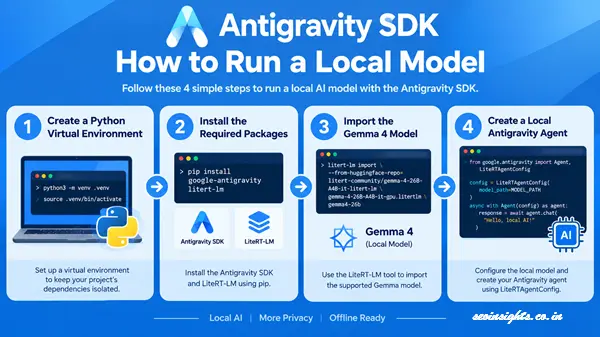
Step 1: Create a Python Virtual Environment
A virtual environment keeps the project’s Python dependencies separate from other applications.
python3 -m venv .venv
source .venv/bin/activate
Windows users will use the appropriate Windows activation command instead.
Google recommends creating a virtual environment before setting up the local workflow. (Google Developers Blog)
Step 2: Install the Antigravity SDK and LiteRT-LM
Install the required packages:
pip install google-antigravity litert-lm
The Antigravity SDK itself is distributed through PyPI, and Google’s documentation recommends installing the package rather than simply cloning the repository because the published package includes the required compiled runtime components. (Google Antigravity)
Step 3: Import the Gemma 4 Model
Google’s example uses the LiteRT-LM command-line tool to import the Gemma 4 26B A4B checkpoint:
litert-lm import \
–from-huggingface-repo=litert-community/gemma-4-26B-A4B-it-litert-lm \
gemma-4-26B-A4B-it-gpu.litertlm \
gemma4-26b
The current documentation says this registers the model under a local LiteRT-LM model directory. (Google Antigravity)
The important point for beginners is that the model itself also needs to be downloaded. Installing the Python SDK does not automatically install a 26B model.
Step 4: Create a Local Antigravity Agent
A simplified example looks like this:
import asyncio
import os
from google.antigravity import Agent, LiteRTAgentConfig
MODEL_PATH = os.path.expanduser(
“~/.litert-lm/models/gemma4-26b/model.litertlm”
)
async def main():
config = LiteRTAgentConfig(
model_path=MODEL_PATH
)
async with Agent(config) as agent:
response = await agent.chat(
“What files are in the current directory?”
)
async for token in response:
print(token, end=””, flush=True)
if __name__ == “__main__”:
asyncio.run(main())
The example follows the current Google documentation pattern for LiteRTAgentConfig. (Google Antigravity)
One small detail can cause confusion: Google’s documentation notes that the model path should be an absolute path, and the ~ shortcut is not automatically expanded by model_path. Using os.path.expanduser() avoids that problem in Python. (Google Antigravity)
What Can a Local Antigravity Agent Do?
The local model is not limited to answering simple questions.
The SDK is designed around agents that can interact with their environment.
For example, you could build an agent that:
- Reads project files.
- Identifies a coding problem.
- Creates a proposed change.
- Writes the change to a workspace.
- Runs tests.
- Examines the results.
- Makes another change if necessary.
Google demonstrated this concept with a local CLI resource-monitor example. The agent was instructed to create a Python utility using psutil and rich, generate a requirements file and test the resulting program. (Google Developers Blog)
This illustrates an important distinction:
A local AI model provides the intelligence, while the agent runtime provides the workflow around that intelligence.
Antigravity SDK Hybrid Workflows
Local AI does not mean developers have to abandon cloud models.
One of the more interesting approaches is a hybrid architecture.
Imagine a software-security project.
A cloud model receives a high-level description:
Audit these three modules for security problems.
The actual source code can remain on the developer’s machine.
The cloud component can help plan the task, while local agents inspect the files, reproduce vulnerabilities, propose patches and run tests.
Google’s published demonstration used this type of architecture. According to Google, the recorded workflow used a cloud model for planning while local Gemma 4 26B instances performed the detailed work. Google reported that 97.2% of the tokens in that particular demonstration ran locally. (Google Developers Blog)
That figure describes Google’s recorded demonstration, not a general performance guarantee for every Antigravity SDK project.
Antigravity SDK with Ollama, LM Studio and vLLM
Gemma and LiteRT are not the only route.
The Antigravity SDK also supports OpenAI-compatible local inference servers.
The relevant configuration is:
LocalOpenAIAgentConfig
Google’s documentation lists local servers such as:
- Ollama
- LM Studio
- vLLM
as examples of compatible backends. (Google Antigravity)
For example, an Ollama-based configuration can look like:
from google.antigravity import Agent, LocalOpenAIAgentConfig
config = LocalOpenAIAgentConfig(
model=”gemma4:26b”,
base_url=”http://localhost:11434/v1″,
).lightweight()
This approach can be particularly useful if you already have a local model server running.
An important distinction
Google specifically warns against using LocalOpenAIAgentConfig to connect to litert-lm serve.
For LiteRT-managed models, use:
LiteRTAgentConfig
For independently managed OpenAI-compatible servers, use:
LocalOpenAIAgentConfig
Keeping those two approaches separate can prevent configuration problems. (Google Antigravity)
What Is LiteRT in the Antigravity SDK?
LiteRT is Google’s on-device AI runtime technology.
In this Antigravity workflow, LiteRT-LM provides the runtime for supported local language models.
The Antigravity SDK then connects the model to the agent runtime.
You can think about the architecture like this:
Your Python application → Antigravity Agent → Local model configuration → LiteRT → Local hardware
Instead of:
Your Python application → Cloud API → Remote model
This architecture is useful when local execution is an important requirement.
Who Should Consider Local Antigravity Agents?
Local AI agents may be interesting for several groups.
Developers
Developers can experiment with autonomous coding workflows while keeping projects on their own machines.
Privacy-conscious teams
Organizations working with proprietary source code or restricted data can investigate local execution as part of a broader privacy architecture.
AI researchers
Local inference provides another environment for experimenting with agent orchestration, tools and model behavior.
Offline developers
Developers working without reliable internet access can build workflows that do not depend on continuous cloud connectivity.
Teams exploring hybrid AI
Organizations can separate tasks between cloud and local models instead of treating the model location as an all-or-nothing decision.
What Are the Limitations?
Local AI is powerful, but it is not automatically the right choice for every project.
Hardware Requirements
The recommended hardware for Gemma 4 26B is substantial.
Google currently recommends at least 24 GB of VRAM or unified memory for this checkpoint. (Google Antigravity)
A computer without suitable hardware may experience slow inference or may not be a practical environment for this model.
Local Storage
The model download itself is large.
The current documentation lists approximately 16.8 GB for the Gemma 4 26B checkpoint used in the Antigravity setup. (Google Antigravity)
Make sure sufficient storage is available before starting the installation.
Model Capability
A local model may not be the best choice for every task.
Some applications benefit from larger or specialized cloud models. Hybrid orchestration can therefore be useful when local privacy and cloud-model capability are both important.
Security Still Matters
Running the model locally does not mean an agent can safely access everything on your computer.
Agent tools can potentially read files, execute commands or modify a workspace depending on the configuration.
Developers should therefore use appropriate workspaces, policies and permissions rather than giving an agent unrestricted access by default.
5 Practical Tips for Beginners
-
Start with a Test Directory
Don’t immediately point an autonomous agent at an important production repository.
Create a small test project first.
-
Check Your Hardware
Before downloading the model, verify your available VRAM or unified memory and disk space.
-
Keep the First Prompt Simple
Start with a task such as:
List the Python files in this directory and explain what each appears to do.
Once that works, move toward file editing and automated testing.
-
Use Restricted Workspaces
Give the agent access only to the directories it actually needs.
This is particularly important when experimenting with autonomous tools.
-
Test Local and Hybrid Architectures Separately
First verify that local inference works.
Then experiment with a hybrid workflow.
This makes it easier to identify whether a problem comes from the model, the agent configuration or the orchestration architecture.
Why the Antigravity SDK Update Matters for AI Development
The bigger story is not simply that another SDK can run a model locally.
The more important development is the separation between agent orchestration and model location.
Developers increasingly want AI agents that can work with real files, tools and applications. At the same time, privacy, cost, offline operation and control over data remain important considerations.
The new Antigravity SDK capabilities give developers more ways to decide where different parts of an agent workflow should execute.
A developer might choose:
Cloud:
For tasks requiring a powerful remote model.
Local:
For sensitive or repetitive tasks that can run on-device.
Hybrid:
For workflows where cloud planning and local execution complement each other.
That flexibility is one of the most useful concepts to understand when evaluating local AI agents.
Key Takeaways
- The Antigravity SDK is Google’s Python SDK for building autonomous AI agents.
- Google announced local-model support on September 23, 2026.
- The initial highlighted local workflow uses Gemma 4 26B A4B with LiteRT. (Google Developers Blog)
- Local agents can operate without an API key or continuous cloud connectivity. (Google Antigravity)
- Google currently recommends at least 24 GB of VRAM or unified memory for the Gemma 4 26B checkpoint. (Google Antigravity)
- Developers can also connect the SDK to OpenAI-compatible local servers such as Ollama and LM Studio. (Google Antigravity)
- Hybrid architectures can combine cloud planning with local execution.
FAQ
-
What is the Antigravity SDK?
The Antigravity SDK is a Python SDK from Google for building autonomous AI agents. It provides an agent runtime with capabilities such as tool execution, context management, safety policies and workflow orchestration. (Google Antigravity)
-
Can the Antigravity SDK run AI models locally?
Yes. Google now documents local, offline agent execution through LiteRTAgentConfig and also supports external OpenAI-compatible local servers through LocalOpenAIAgentConfig. (Google Antigravity)
-
Which local model does Google recommend for the Antigravity SDK?
Google’s current local-model documentation highlights Gemma 4 26B A4B running through LiteRT-LM. The documentation recommends a machine with at least 24 GB of VRAM or unified memory. (Google Antigravity)
- Does running an Antigravity local model require an API key?
Local execution does not require an API key or cloud connectivity, according to Google’s current documentation. (Google Antigravity)
-
Can Antigravity SDK work with Ollama or LM Studio?
Yes. The SDK provides LocalOpenAIAgentConfig for connecting to OpenAI-compatible local inference servers, including Ollama and LM Studio. (Google Antigravity)
Conclusion
The latest Antigravity SDK update gives developers another way to build AI agents: locally, offline or through a combination of local and cloud models.
The combination of the Antigravity agent runtime, Gemma 4 26B and LiteRT creates a practical path for developers who want AI agents to work closer to their own machines and data. At the same time, support for OpenAI-compatible local servers means developers are not restricted to a single local inference approach. (Google Antigravity)
For beginners, the best way to understand the technology is to start small: install the SDK, configure a supported local model, give the agent a controlled workspace and test a simple task. Once that works, you can explore coding assistants, automated testing, local utilities and hybrid cloud-local workflows.
The important shift is simple: with the Antigravity SDK, where an AI agent runs can become part of the application’s design rather than an assumption hidden behind an API.
Official resources: Google’s announcement, the Antigravity SDK documentation and the SDK’s local-model guide are the best places to check for changes because local-model support and hardware compatibility can evolve. (Google Developers Blog)