

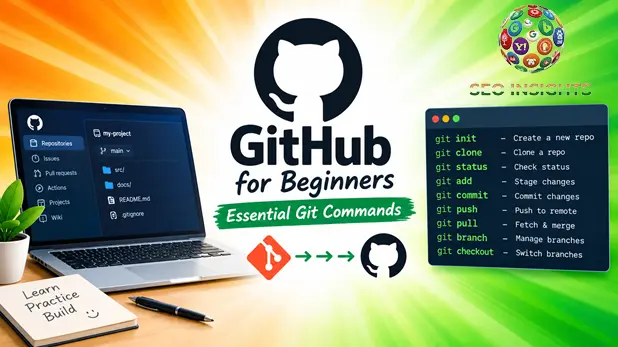
GitHub for Beginners: Essential Git Commands to Get You Started
New to Git? Learn the essential Git commands every beginner needs — with simple examples, real use cases, and tips to avoid common mistakes.
Highlights
- What Git and GitHub actually are (and why they’re not the same thing)
- The core Git workflow explained in plain English
- 15 essential Git commands with real examples
- Common beginner mistakes and how to avoid them
- A simple mental model to remember commands without memorizing them
- Practical tips for your first real project on GitHub
Why Every Developer’s Journey Eventually Leads Here
Picture this: you’ve just finished a coding tutorial, built your first little project, and now someone tells you to “just push it to GitHub.” You nod along, but internally you’re panicking. What’s a commit? Why do I need to “pull” something? Isn’t Git and GitHub the same thing?
If that sounds familiar, you’re not alone. Almost every developer has stood exactly where you’re standing now — staring at a terminal, unsure whether typing the wrong command will break something forever. It won’t. And by the end of this guide, you’ll understand exactly why.
Git vs. GitHub: Clearing Up the Confusion First
Before diving into commands, let’s fix a mix-up that trips up almost every beginner.
Git is a version control system installed on your computer. It tracks changes to your files over time, letting you go back, compare versions, and collaborate without overwriting each other’s work.
GitHub is a website that hosts your Git repositories online. Think of Git as the engine and GitHub as the garage where you park and share your car.
You can use Git without GitHub. But if you want to collaborate, back up your code online, or contribute to open-source projects, GitHub (or similar platforms like GitLab and Bitbucket) is where Git really shines.
The Big Picture: How Git Actually Works
Git commands make a lot more sense once you understand the basic workflow. Imagine three spaces:
1.Working Directory — the actual files you’re editing right now
2.Staging Area — a holding zone for changes you’re about to save
3.Repository (Local & Remote) — where your saved history lives
You move changes from your working directory → staging area → repository, and finally push that repository to GitHub. Every command below fits somewhere in this flow.
Setting Up Git for the First Time
Before your first commit, Git needs to know who you are.
git config –global user.name “Your Name”
git config –global user.email “you@example.com”
This isn’t optional — Git attaches this info to every commit you make, so collaborators know who changed what.
The Essential Git Commands Every Beginner Should Know
1. git init — Start Tracking a Project
Run this inside any folder to turn it into a Git repository.
git init
It’s like telling Git, “Start paying attention to everything happening in this folder.”
2. git clone — Copy an Existing Repository
Want to work on a project that already exists on GitHub? Clone it.
git clone https://github.com/username/repository.git
This downloads the entire project, including its full history, to your machine.
3. git status — Check What’s Changed
This is the command you’ll type more than any other.
git status
It tells you which files are modified, staged, or untracked — basically your project’s current health check.
4. git add — Stage Your Changes
Before saving changes permanently, you stage them.
git add filename.txt
git add .
The second command stages everything at once. Beginners often skip understanding this step, but it’s what gives you control over exactly what gets saved.
5. git commit — Save a Snapshot
A commit is a saved checkpoint of your project.
git commit -m “Add login page functionality”
Write commit messages like you’re explaining the change to a teammate — clear, specific, and useful six months from now.
6. git push — Upload Changes to GitHub
Once committed locally, push sends your changes to the remote repository.
git push origin main
7. git pull — Download the Latest Changes
If someone else updated the project, pull those changes into your local copy.
git pull origin main
Forgetting to pull before you start working is one of the most common causes of merge conflicts — more on that shortly.
8. git branch — Create and Manage Branches
Branches let you work on new features without touching the main codebase.
git branch feature-login
9. git checkout / git switch — Move Between Branches
git checkout feature-login
git switch feature-login
switch is the newer, more beginner-friendly command, but checkout still works everywhere and is worth recognizing.
10. git merge — Combine Branches
Once your feature branch is ready, merge it back into main.
git checkout main
git merge feature-login
11. git log — View Commit History
git log
Add –oneline for a cleaner, single-line view of your project’s timeline.
12. git diff — See Exact Changes
git diff
This shows line-by-line differences before you stage or commit — great for catching mistakes early.
13. git remote -v — Check Connected Repositories
git remote -v
Useful when you’re unsure which GitHub repository your local project is linked to.
14. git reset — Undo Staged Changes
git reset filename.txt
This unstages a file without deleting your actual work — a safer undo than beginners often assume.
15. git stash — Save Work Temporarily
Need to switch tasks without committing half-finished work?
git stash
git stash pop
It’s like putting your changes in a drawer and pulling them back out later.
A Simple Story to Remember the Workflow
Think of writing a book. You draft a chapter (working directory), hand the pages you’re happy with to an editor (staging with git add), the editor approves and files them officially (git commit), and finally, the finished chapters go to the publisher (git push). If a co-author sends new chapters, you request their latest pages before continuing (git pull).
Common Beginner Mistakes (And How to Avoid Them)
Committing too rarely. Small, frequent commits are easier to track and undo than one giant commit at the end of the day.
Vague commit messages. “Fixed stuff” tells no one anything. Be specific.
Working directly on the main branch. Create a branch for new features so your main code stays stable.
Ignoring merge conflicts. They look scary but are just Git asking you to decide between two conflicting changes. Open the file, choose the correct code, then commit.
Forgetting to pull before pushing. This is the fastest way to create unnecessary conflicts when working with others.
Practical Tips for Your First Real Project
- Use a .gitignore file to keep unnecessary files (like node_modules or .env) out of your repository.
- Commit early, commit often — don’t wait until your code is “perfect.”
- Read git status before and after every major action; it’s your safety net.
- Practice on a throwaway repository before working on something important.
- Learn to read merge conflict markers (<<<<<<<, =======, >>>>>>>) — they look intimidating but follow a simple pattern.
Key Takeaways
Git tracks changes locally; GitHub hosts and shares those changes online — they work together but aren’t the same thing.
The core workflow is: edit → stage (git add) → save (git commit) → upload (git push).
git status and git log are your best friends for staying oriented.
Branching with git branch and git switch keeps experimental work separate from stable code.
Merge conflicts are normal, not a sign you’ve broken something.
Frequent, small, well-described commits make collaboration and debugging far easier.
FAQ
1. Do I need to know all Git commands to use GitHub?
No. A handful of commands — init, add, commit, push, pull, and status — cover most day-to-day work. You can learn advanced commands as you need them.
2. What’s the difference between git pull and git fetch?
git fetch downloads changes from GitHub but doesn’t merge them into your local files. git pull does both — fetch and merge — in one step.
3. Can I undo a commit after pushing it to GitHub?
Yes, though it’s more involved than undoing a local commit. Commands like git revert create a new commit that reverses previous changes without rewriting shared history.
4. Why is my git push being rejected?
Usually because the remote repository has changes you don’t have locally. Run git pull first to sync up, resolve any conflicts, then push again.
5. Is GitHub the only platform that uses Git?
No. GitLab and Bitbucket are popular alternatives that also use Git as their underlying version control system, so these commands apply there too.
Conclusion
Learning Git doesn’t require memorizing every command on day one — it requires understanding the workflow they support. Once you see how staging, committing, and pushing fit together, the commands stop feeling like magic spells and start feeling like tools you reach for naturally. Start small: initialize a practice repository, make a few commits, push them to GitHub, and get comfortable with mistakes along the way. That hands-on repetition, more than any cheat sheet, is what turns Git from intimidating into intuitive.