

Gemini App for Windows Is Finally Here — Here’s What It Can Do
Highlights
- Gemini’s desktop app is now available for Windows 10 and 11, globally, as a free download.
- Press Alt + Space to summon Gemini over any app you’re working in — no tab switching required.
- It connects to Gmail, Google Drive, and other Google apps to help draft summaries and handle multi-step tasks.
- Built-in creative tools let you generate images (Nano Banana) and videos (Gemini Omni) without opening a browser.
- The app is designed to be lightweight, so it won’t bog down your PC while running in the background.
Gemini Finally Lands on Windows Desktops
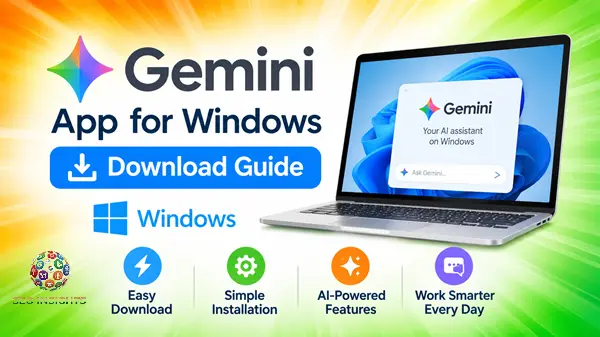
If you’ve ever been mid-spreadsheet, mid-email, or mid-panic before a deadline and thought, “I wish I could just ask AI something without alt-tabbing to a browser tab,” Google just answered that. On September 10, 2026, Google launched the Gemini app for Windows, a new desktop app built to work alongside your favorite tools and daily applications.
This isn’t just a shortcut to the Gemini website. It’s a proper desktop companion that lives quietly in the background until you need it — then shows up instantly, does its job, and gets out of your way.
Let’s walk through what it actually does, how to get it, and whether it’s worth adding to your daily workflow.
What Is the Gemini App for Windows?
Think of it as Gemini’s answer to the “always-on assistant” trend that tools like Windows Copilot and various AI menu-bar apps have been chasing. Instead of forcing you to open a browser, log in, and paste your question into a chat box, the Gemini app sits on your desktop and responds to a keyboard shortcut.
The pitch is simple: it gives you instant assistance without breaking your flow. That “without breaking your flow” part is the whole point — most AI tools ask you to stop what you’re doing. This one is built to interrupt as little as possible.
How to Download and Install Gemini on Windows
Getting started takes about two minutes:
- Check your OS. The app works on Windows 10 and 11.
- Go to gemini.google/desktop. The app is available today globally, and you can download it at gemini.google/desktop.
- Install and sign in with your existing Google account — no separate account creation needed.
- Pin it, minimize it, or forget it. Once installed, it runs quietly until you call on it.
There’s no complicated setup, no plugin configuration, and no need to touch your browser extensions. If you already use Gemini on your phone or through Chrome, your account and history carry over automatically.
The Alt + Space Shortcut: The Real Star of the Show
Here’s the feature that will probably get the most daily use: Alt + Space.
Press Alt + Space on your PC at any time to open Gemini over your active work. Whether you need a quick fact-check on a document or a few catchy title ideas for a presentation, you can get the help you need and jump right back into your workflow.
Picture this scenario: you’re halfway through writing a client proposal in Word, and you can’t remember the exact statistic you read last week. Instead of opening a new browser tab, losing your place, and possibly getting distracted by fifteen other tabs, you just hit Alt + Space, ask your question, get the answer, and close it. Your document is exactly where you left it.
This is a small thing, but small frictions add up. Anyone who’s lost twenty minutes to “just checking one thing online” knows exactly why this matters.
A Dedicated Workspace for Bigger Tasks
Not every task is a quick lookup. Sometimes you need Gemini to actually dig into something — and that’s where the full app window comes in.
Inside the new app, you can access everything you use Gemini for already. Hand off multi-step tasks to Gemini Spark, your 24/7 personal AI agent, or ask Gemini to draft a project summary by pulling information directly from your Google apps like Gmail and Google Drive.
In practice, this means you could ask Gemini to pull together a status update using recent emails and a shared doc, without manually copying and pasting content between windows. For anyone juggling client work, team updates, or research projects, this kind of cross-app awareness can save real time — provided you’re comfortable granting that access.
Tip for beginners: Start small. Use it for a single task, like summarizing one long email thread, before trusting it with a full project handoff. It’ll help you understand exactly what it can and can’t see.
Built-In Image and Video Creation
The app isn’t only for text-based tasks. Google has folded its creative tools directly into the Windows experience too.
You can generate custom images with Nano Banana for a presentation, direct a high-quality video with Gemini Omni, and best of all you can do it all in one convenient place.
This is a genuinely useful addition for anyone who regularly needs quick visuals — marketers building slide decks, small business owners creating social posts, or students putting together presentations. Instead of switching between a chat tool for writing and a separate tool for images, it’s all under one roof.
Does It Slow Down Your Computer?
A fair question, especially if you’ve had bad experiences with background apps eating up RAM. Google addressed this directly: the app is lightweight and quiet, and runs without slowing down your PC. Whether that holds true across all hardware configurations will become clearer as more people install it, but the design intent is clearly to stay out of the way when it’s not in use.
Is This Just the Beginning?
According to Google, yes. This is just the beginning for the Gemini app on Windows, with more native desktop capabilities rolling out over time. That suggests the current feature set — the shortcut, the workspace, the creative tools — is a foundation rather than a finished product. Expect updates that go deeper into Windows-specific integrations over the coming months.
Should You Install It?
If you spend most of your workday on a Windows PC and already use Gemini through your browser or phone, this is a fairly easy upgrade. The main benefit is friction reduction — you get the same Gemini capabilities without the extra steps of opening a browser and finding your tab.
If you’re new to AI assistants altogether, this is also a reasonable low-risk way to start. There’s no cost to download, no complex setup, and you can use it as lightly or heavily as you want.
The one thing worth being mindful of: since the app can connect to Gmail and Drive, it’s worth understanding what permissions you’re granting before you hand over full access to a personal AI agent. Start with basic tasks first.
Key Takeaways
- The Gemini app for Windows launched September 10, 2026, and is available now for Windows 10 and 11 users worldwide.
- Download it directly from gemini.google/desktop — no browser required to run it afterward.
- The Alt + Space shortcut is the core feature, letting you summon Gemini over any open app instantly.
- It can connect to your Gmail and Google Drive to help with multi-step tasks and summaries via Gemini Spark.
- Built-in creative tools (Nano Banana for images, Gemini Omni for video) mean you don’t need separate apps for content creation.
- Google designed it to be lightweight, so it shouldn’t noticeably slow down your system.
- More features are expected to roll out over time, so this is an evolving product, not a finished one.
FAQ
-
Is the Gemini app for Windows free to download?
Yes, the app itself is free to download from gemini.google/desktop. However, some advanced features, like Gemini Spark and Gemini Omni video generation, require a Google AI subscription.
-
What Windows versions support the Gemini app?
The app currently supports Windows 10 and Windows 11.
-
How do I open Gemini quickly without opening a browser?
Use the keyboard shortcut Alt + Space. It opens Gemini as an overlay on top of whatever you’re currently working on.
-
Can Gemini on Windows access my Gmail and Google Drive?
Yes, it can pull information from Gmail and Google Drive to help with tasks like drafting summaries, but only with your permission and existing Google account access.
-
Will the Gemini desktop app slow down my computer?
Google states the app is built to be lightweight and run quietly in the background without impacting performance, though real-world results may vary by device.
Conclusion
The Gemini app for Windows isn’t reinventing what Gemini can do — it’s changing how quickly you can reach it. By cutting out the browser-tab detour and putting a one-keystroke shortcut on your desktop, Google is betting that convenience, not new features, is what will make AI assistants part of your daily habit. If you’re already a Gemini user, it’s a simple download that fits neatly into existing workflows. If you’re AI-curious but haven’t committed to a tool yet, this low-friction setup makes for an easy starting point.