

How to Verify a Blogger Site in Google Search Console: Step-by-Step Guide
If you publish articles on Blogger, connecting your blog to Google Search Console is an important step toward understanding how people find your content through Google Search. However, beginners often get confused by the verification process, especially when Google does not display their blog automatically.
The good news is that Blogger blogs can often be verified automatically when you use the same Google account to manage Blogger and access Search Console. Older blogs or blogs managed through a different account may require additional steps.
In this guide, you will learn how to verify a Blogger site in Google Search Console, troubleshoot common problems, check whether your blog is indexed, and take the next steps toward improving your blog’s search visibility.
What Is Google Search Console?
Google Search Console is a free service from Google that helps website owners understand how their websites perform in Google Search.
It provides information about search traffic, indexing, and certain technical issues affecting a website.
For Blogger users, Search Console can help answer questions such as:
- How many times has my blog appeared in Google Search?
- Which search queries bring visitors to my blog?
- Which blog posts receive impressions and clicks?
- Has Google indexed my latest articles?
- Are there indexing problems that need attention?
You can access the service at Google Search Console.
Why Should You Verify Your Blogger Blog?
Verification establishes that you have the necessary ownership rights to manage a website property in Search Console. It does not automatically improve rankings or guarantee that Google will index every post.
Here are the main benefits.
1. Monitor Google Search performance
Search Console provides performance reports containing impressions, clicks, click-through rate (CTR), and average position.
For example, suppose you publish an article about Blogger SEO. After Google begins showing the article in search results, you can use Search Console to discover which queries generate impressions and whether users click your result.
2. Check whether Google indexes your posts
A published Blogger post is not necessarily indexed immediately.
Search Console lets you inspect individual URLs and check the reported indexing status. You can also request indexing when appropriate.
3. Identify technical SEO problems
Search Console can report issues involving indexing, crawl accessibility, and other search-related technical concerns.
Investigating these reports helps you distinguish between a technical problem and a page that simply has not yet appeared in search results.
4. Discover opportunities to improve content
Search performance data can reveal queries for which your posts already receive impressions.
You can use these insights to improve article titles, clarify content, answer related questions, and create useful supporting articles.
Before You Begin: What You Need
Prepare the following before starting the Blogger Google Search Console setup.
- A working Blogger blog.
- Access to the Google account that manages the blog.
- An internet connection and a web browser.
- The correct blog URL, including the appropriate protocol and domain.
For example, a Blogger address might look like this:
https://yourblog.blogspot.com/
If your blog uses a custom domain, such as https://www.example.com/, use that address when adding the corresponding website property.
Important: Make sure you select the correct Google account. Automatic verification for Google-hosted properties depends on using the same account associated with the property you manage.
How to Verify a Blogger Site in Google Search Console
Follow these steps in order. In most cases, you should try the automatic verification process before editing your Blogger theme or adding code manually.
Step 1: Sign in to Blogger
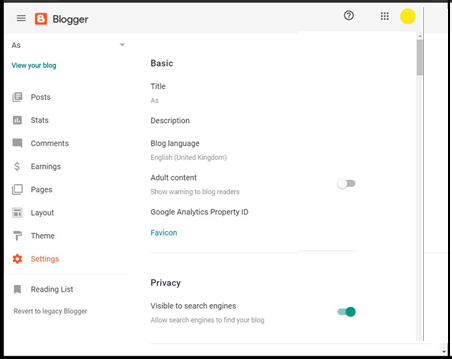
Open Blogger and sign in with the Google account you use to manage your blog.
If you manage multiple blogs, select the correct blog from the blog selector.
Before continuing, check that:
- You can open the blog’s dashboard.
- You have permission to manage its settings.
- The blog URL is correct.
If you have multiple Google accounts, do not assume that the account currently open in your browser is the one that owns the blog.
Step 2: Open Google Search Console
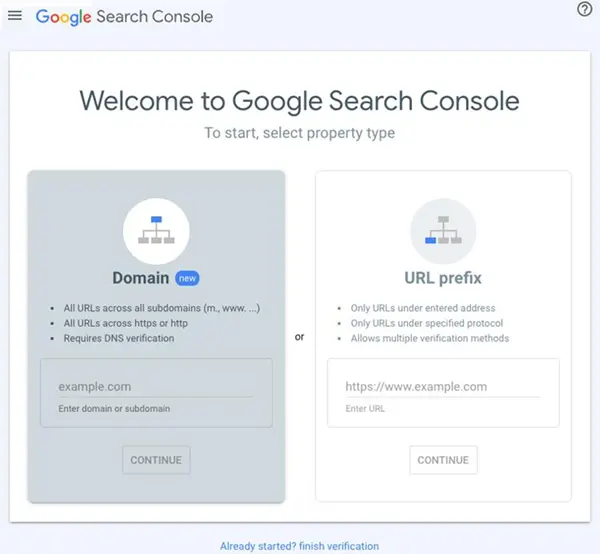
Visit Google Search Console.
Sign in using the same Google account you use to manage Blogger.
Look at the property selector. Your blog might already appear in the list.
If it does, select it and check whether ownership is verified.
If your blog is missing, continue to the next step.
Step 3: Add your Blogger website as a property
In Search Console, open the property selector and choose the option to add a property.
Google offers two main property types:
| Property type | What it covers |
| Domain property | A domain and its subdomains across protocols |
| URL-prefix property | URLs beginning with the specific prefix you enter |
For a standard Blogger address ending in blogspot.com, the URL-prefix property is generally the straightforward option to try.
Enter the full blog address, for example:
https://yourblog.blogspot.com/
Then continue.
If you use a custom domain, you can add the domain property when you control its DNS settings, or choose a URL-prefix property for the exact URL you want to monitor.
The verification options available depend on the property type and your setup.
Step 4: Check whether Blogger verifies ownership automatically
This is the most important step for many Blogger users.
Google’s documentation states that Blogger sites can be verified automatically when you add them to Search Console while signed in with the same Google account used to manage the blog. Newer Blogger blogs may already be present in Search Console.
After adding the property:
- Follow the instructions displayed by Search Console.
- Check whether ownership is verified automatically.
- If verification succeeds, open the property.
- If verification fails, check the account and property URL before attempting another method.
You do not need to add a verification meta tag or edit your theme if automatic verification has already succeeded.
Example: Suppose your Blogger blog is https://seo-insights.blogspot.com/. You manage it using one Google account and open Search Console with that same account. When you add the correct URL-prefix property, Google may verify it automatically.
If it does not, proceed to the troubleshooting section below.
Step 5: Use the Blogger Search Console setting if needed
Blogger also provides a Google Search Console link under its settings.
To find it:
- Open your Blogger dashboard.
- Select your blog.
- Click Settings.
- Find the Google Search Console option under the relevant settings section.
- Open the link and follow the instructions shown.
The precise placement or wording can vary with the interface. Google’s official Blogger settings guide documents the Search Console setting.
If you already added and verified your property, you do not need to repeat the process unnecessarily.
Step 6: Confirm that verification succeeded
After completing the process, return to Search Console and select your Blogger property.
Check that you can open its reports and settings. Under the property’s settings, look for the ownership verification details.
A successful verification means Search Console recognizes your ownership for that property.
Keep in mind that verification and indexing are two different things. A verified property can still have posts that Google has not indexed.
What If Your Blogger Blog Is Not Verified Automatically?
Automatic verification does not work in every situation. Older blogs, account mismatches, and incorrect property URLs can require extra troubleshooting.
Try the following solutions in order.
Solution 1: Check your Google account
This is the first thing to investigate.
- Open Blogger and check which Google account manages the blog.
- Open Search Console using that account.
- Select the correct blog property.
- Try adding the property again if necessary.
If you use a different account for Search Console, the account managing Blogger may need to grant appropriate access or complete verification.
Solution 2: Check the property URL
Ensure the address entered in Search Console matches your actual blog.
For example, these are different URL-prefix properties:
- http://example.blogspot.com/
- https://example.blogspot.com/
- https://www.example.com/
Use the URL that corresponds to your actual site. HTTPS and HTTP versions are not interchangeable URL prefixes.
If you have moved from a Blogspot address to a custom domain, check which property you need to monitor.
Solution 3: Use an available HTML meta-tag verification method
For some older Blogger blogs, Google documents HTML-tag verification as an alternative. However, the exact methods offered in Search Console depend on the property and platform configuration.
If Search Console offers the HTML-tag method and you can edit the live Blogger theme, follow these steps.
- Open Search Console and select the unverified property.
- Choose the HTML-tag verification method if it is offered.
- Copy the complete meta tag supplied by Google.
- In Blogger, open Theme and access the theme’s HTML editor.
- Locate the document’s <head> section.
- Insert the tag in the appropriate location, preserving its exact contents.
- Save the theme.
- Return to Search Console and click Verify.
A typical verification tag looks like this:
<meta name=”google-site-verification” content=”YOUR_VERIFICATION_TOKEN” />
This is an illustrative example, not a valid token. Always use the exact tag generated for your Google account.
Important: Back up or copy your existing theme before editing its HTML. Do not replace the theme with an example snippet, and do not add multiple tags unless you know they are required.
If Blogger removes the tag after saving, or the method is not offered, return to the platform-specific verification instructions rather than repeatedly inserting code. Google explains the HTML-tag requirements in its official ownership verification guide.
Solution 4: Verify a custom domain through DNS
If your Blogger site uses a custom domain and you want to verify a Domain property, Search Console requires a DNS-based verification method.
The general process is:
- Add your root domain as a Domain property.
- Copy the DNS verification record supplied by Search Console.
- Sign in to your domain registrar or DNS hosting provider.
- Add the record exactly as instructed.
- Allow time for the record to become visible.
- Return to Search Console and complete verification.
Do not change unrelated DNS records. Incorrect changes can disrupt your website or email services.
A Domain property covers the domain’s subdomains and protocols, while a URL-prefix property covers only the specified URL prefix.
How to Submit a Blogger Sitemap to Google Search Console
Once your blog is added, you can use the Sitemaps report to tell Google where to find a sitemap.
A sitemap is a file that provides information about URLs on your website. It can help Google discover your content, although submitting one does not guarantee indexing.
Step 1: Open the Sitemaps report
In Search Console, select your Blogger property.
From the left-hand navigation, open Sitemaps.
Step 2: Enter your sitemap URL
For many Blogger blogs, the standard sitemap address is:
https://yourblog.blogspot.com/sitemap.xml
Replace yourblog.blogspot.com with your actual blog address.
For a custom domain, use the corresponding domain:
https://www.example.com/sitemap.xml
Before submitting the URL, open it in your browser to check that it loads successfully. Blogger configurations and domain setups can differ, so verify the actual sitemap address rather than assuming every blog has an identical configuration.
Step 3: Submit the sitemap
Enter the sitemap path in the Sitemaps report and submit it.
After submission, check the reported status. If Search Console reports an error, confirm that the URL is correct and the sitemap is accessible.
You may also encounter Blogger’s Atom feeds, which can be used as alternative discovery resources in some setups. Do not submit random feed URLs without confirming that they are appropriate for your site.
For more information, consult Google Search Console Help.
How to Check Whether Your Blogger Posts Are Indexed
Verifying your blog is only the beginning. The next step is to see whether Google has indexed your important pages.
Use the URL Inspection tool
- Open your Blogger property in Search Console.
- Copy the complete URL of a published blog post.
- Paste the URL into the URL Inspection tool at the top of the Search Console interface.
- Review the indexing information.
- If the page is eligible but not indexed, and the report provides the option, request indexing.
For example, if your article is published at:
https://yourblog.blogspot.com/2026/10/blogger-seo-guide.html
Inspect that exact URL rather than only the blog homepage.
Google may take time to crawl and index a page. Requesting indexing does not guarantee inclusion or a particular ranking.
Understand common indexing statuses
| Status or situation | What it means | What to do |
| URL is on Google | Google reports the URL as indexed | Review performance and maintain useful content |
| URL is not on Google | The page is not currently indexed according to the report | Review the stated reason and page accessibility |
| Discovered, currently not indexed | Google knows the URL but has not indexed it | Check content quality, internal links, and crawl patterns |
| Crawled, currently not indexed | Google crawled the page but has not indexed it | Review whether the page provides distinct value |
| Page has a redirect | The URL redirects elsewhere | Inspect the destination and canonical URL |
The precise wording and available details can change. Use the explanation provided by the URL Inspection report to investigate your particular page.
Common Blogger Search Console Errors and How to Fix Them
1. “Ownership verification failed”
Possible causes:
- You are signed in with the wrong account.
- You added the wrong website property.
- The verification method is not supported by your current setup.
- A required verification token is missing.
Solution: Confirm the account and URL first. Then follow the verification method provided by Search Console.
2. “We couldn’t find your verification meta tag”
This error can occur when the tag is missing from the live homepage, is placed outside the <head> section, or has incorrect contents.
Solution: Copy the exact tag from Search Console, save the theme, and inspect the live page source. Search for google-site-verification to check whether the tag is present.
If the theme editor removes the tag, try a supported platform-specific method instead.
3. “Couldn’t fetch sitemap”
This message can indicate an incorrect sitemap address, an inaccessible resource, or a temporary fetching problem.
Solution:
- Open the submitted sitemap URL directly.
- Check that you used the correct protocol and domain.
- Confirm that the sitemap returns valid content.
- Review the latest error details in Search Console before resubmitting.
4. “URL is not on Google”
This message does not necessarily mean your site is broken.
A new post may not have been discovered or crawled yet. Other possible causes include indexing restrictions, duplication, canonicalization, or insufficient content quality.
Solution: Inspect the individual URL and address the specific reason reported by Google. Avoid making unrelated changes to your Blogger settings.
5. Your blog does not appear in Google Search
A verified property is not automatically guaranteed to appear in search results.
Check the following in Blogger:
- Open Settings.
- Find the Privacy section.
- Ensure Visible to search engines is enabled if you want your public blog discoverable.
- Check that the blog and relevant posts are publicly accessible.
- Review any custom robots settings that might restrict crawling or indexing.
Google’s official Blogger search visibility guide explains the visibility setting and other search-related options.
Best Practices After Verifying Your Blogger Site
After verification, focus on making your blog useful, accessible, and easy for search engines to understand.
Publish helpful, original content
Answer the reader’s question directly. Include examples, clear explanations, and practical details that make your article more useful than a superficial overview.
Avoid publishing multiple pages that target the same query without offering a meaningful difference.
Write descriptive titles
Use clear titles that accurately describe each article.
For example:
- Weak: “My New Post”
- Better: “How to Verify a Blogger Site in Google Search Console”
Include relevant search terms naturally rather than repeating the same keyword excessively.
Build useful internal links
Link related articles together when it helps readers navigate your site.
For example, an article about Blogger verification might link to a guide about submitting a sitemap or improving Blogger SEO.
Monitor performance regularly
Check the Performance report to identify:
- Queries generating impressions.
- Pages receiving organic clicks.
- Pages with strong impressions but relatively low CTR.
- Changes in search visibility over time.
Use these observations to prioritize improvements. Average position and CTR are diagnostic metrics, not guarantees of future rankings.
Be careful with robots settings
Blogger provides custom robots.txt and robots header settings for users who enable them. Incorrect configurations can prevent search engines from accessing or indexing content.
If you are a beginner, avoid changing these settings unless you understand the consequences.
Recommended Tools and Official Resources
These free resources are useful for managing and improving a Blogger website.
Check search performance, indexing information, sitemap status, and site ownership.
Open Search Console
Manage your blog, update its settings, publish articles, and control search visibility.
Open Blogger
Read official documentation about crawling, indexing, search appearance, and SEO fundamentals.
Visit Search Central
How Long Does It Take to See Search Console Data?
Verification can be immediate when an eligible Blogger property is automatically verified. Search performance reports, however, may take several days to begin showing data.
The amount of available data depends on your site’s search activity and history.
Keep these three processes separate:
- Verification: Establishes your ownership permissions.
- Crawling and indexing: Determines whether Google discovers, accesses, and includes your pages in its index.
- Performance reporting: Shows available data about your site’s appearance in Google Search.
You can complete verification today and still need to wait for indexing or reporting data.
Key Takeaways
- Sign in to Blogger and Search Console using the same Google account whenever possible.
- Add the correct blog address as a Search Console property.
- Try automatic ownership verification before editing your theme.
- If automatic verification fails, check the account, URL, and available verification methods.
- Submit an accessible sitemap and inspect important URLs.
- Remember that verification does not guarantee indexing or higher rankings.
- Monitor search performance and improve your content based on useful evidence.
FAQ
1. How do I verify a Blogger site in Google Search Console?
Sign in to Search Console with the Google account that manages your blog, add the correct Blogger URL as a property, and follow the verification instructions. Eligible Blogger sites may be verified automatically.
2. Does Blogger automatically verify ownership in Google Search Console?
Yes, eligible Blogger sites can be verified automatically when you use the same Google account to manage the blog and access Search Console. Older blogs or account mismatches may require another verification method.
3. How do I add a Blogspot website to Google Search Console?
Open Search Console, choose the option to add a property, and enter your full Blogspot URL, such as https://yourblog.blogspot.com/. Follow the displayed verification steps.
4. Why is my Blogger site not verified in Search Console?
Common reasons include using the wrong Google account, entering an incorrect URL, or attempting a verification method that is unsuitable for your setup. Check these issues before editing your theme or DNS settings.
5. Do I need to add a verification meta tag to Blogger?
Not always. Google can automatically verify eligible Blogger sites. If automatic verification fails, an HTML meta tag may be an option when Search Console offers that method and you can add the tag to your live theme.
6. How do I submit a Blogger sitemap to Google Search Console?
Open the Sitemaps report for your property and submit your verified sitemap URL. A common Blogger sitemap address is https://yourblog.blogspot.com/sitemap.xml. Check that the address works for your blog before submitting it.
7. How can I get my Blogger posts indexed by Google?
Publish useful, original content, make sure your blog is publicly accessible, check for indexing restrictions, and inspect individual post URLs in Search Console. You can request indexing when the option is available, but Google decides whether and when to index a page.
8. Does verifying my Blogger site improve Google rankings?
No. Verification provides access to Search Console features and reports; it is not a ranking factor that guarantees better positions. Useful content, accessibility, relevance, and other search systems determine how pages perform in Google Search.
Conclusion
Verifying your Blogger site in Google Search Console is a straightforward way to begin monitoring your blog’s presence in Google Search. For many users, adding the blog while signed in with the correct Google account is enough to complete verification automatically.
If that does not work, check your account and property URL before trying an alternative verification method. Once your property is verified, submit an appropriate sitemap, inspect important posts, and use performance reports to guide your SEO improvements.
Your next step: Open Google Search Console, add your Blogger URL, and confirm that the correct property is verified.
For more articles on Blogger:
- How to Create a Blog on Blogger: Complete Beginner Setup Guide 2026
- Blogger SEO Settings: The Complete Guide to Ranking Blogspot Posts
- How to submit a blogger sitemap to Google Search Console
- Blogger Custom Domain Setup: Connect Your Domain Step by Step (2026 Guide)
- How to Write SEO-Friendly Blogger Posts That Rank on Google
- How to Enable and Optimize Search Descriptions in Blogger (2026)